Workspaces: A separate space for every context you work in

Contents
- How to create a workspace
- Where to find (and switch between) your workspaces
- What you can do with workspaces
- How to use workspaces
You might use Datawrapper at work, for personal projects, or as part of a volunteer group. Workspaces create a clean separation between those different environments, making it easier to collaborate more closely with different groups of colleagues — and to keep a private space just for you.
All your teams, folders, and visualizations in Datawrapper belong to a particular workspace. If you’re a member of multiple workspaces, you can switch between them at any time using the menu in the top-right corner.
If you mostly use Datawrapper by yourself, then workspaces won’t be a big deal for you — in fact, you can probably stop reading here. But if you use Datawrapper to collaborate with other people, workspaces make that job a lot easier. Read on to learn how!
How to create a workspace
When you first sign up for Datawrapper, you're prompted to add a profile name. Datawrapper will automatically creates a workspace with the same name. This can be a personal workspace or perhaps one for your organization, so you can collaborate with your colleagues (in that case, you may want to rename your workspace). If you want to have both, that's also no problem – you can just create more workspaces to fit your needs.
To learn more, read on here:
👉 How to create a workspace
👉 How to manage your workspace
👉 How to add people to a workspace
Where to find (and switch between) your workspaces
Your active workspace is shown in the top-right corner of the Datawrapper app.
Hover over it to open a menu that lets you switch between your workspaces:
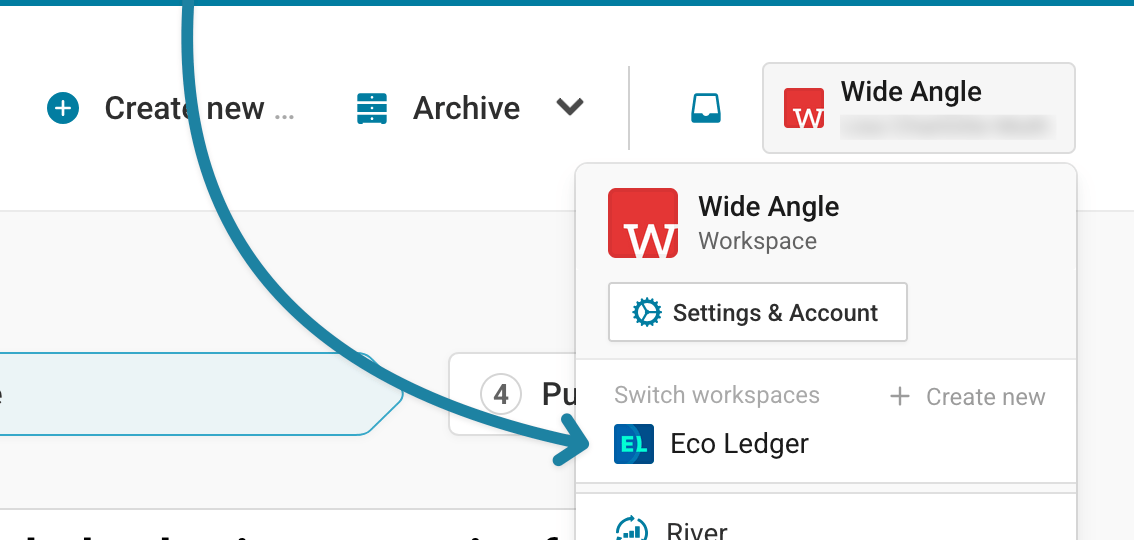
To see all teams, shared folders and visualizations that belong to that workspace, go to your Archive (here's a direct link: app.datawrapper.de/archive).
What you can do with workspaces
Workspaces come with several powerful options. You can:
- Manage all your teams in one place. Create new teams, see existing ones, and share your plan features across them.
- Set workspace-wide defaults. Define chart sizes, locales, or themes globally, while still allowing teams to override settings when needed.
- Control visibility. Choose between public teams (open to all workspace members) or private teams (invite-only).
- Manage members. Add or remove people across the workspace from one overview, instead of editing each team individually.
- Share admin responsibilities. Assign multiple workspace admins to handle billing, team memberships, and settings together.
To learn more, read on here:
👉 How to manage your workspace
👉 How to change your workspace and team settings
How to use workspaces
Here are a few ways workspaces can help you structure collaboration:
- Keep work separate. If you use Datawrapper for different purposes — like work, university, or personal projects — you can give each one its own workspace, with no overlap.
- Collaborate at scale. In a larger organization, workspaces make it easy to oversee multiple teams, manage permissions, and keep settings consistent.
- Teach & supervise. If you’re teaching or running workshops, create a workspace for your class or course. That way, you can see all student submissions in one place without mixing them into your personal projects.
- Stay flexible. Use a mix of public and private teams within a workspace to balance open collaboration with privacy for sensitive projects.
Frequently Asked Questions
What is the difference between workspaces and teams?
A team is a shared folder of visualizations, with the ability to choose settings and preferences for all visualizations in the team. But this system gets unwieldy when your organization is large enough to need more than one team.
With workspaces, your organization’s teams live under a single roof and you can view, edit and create teams in a single overview.
If you use a paid plan, all teams will automatically receive the features of your chosen plan level.
Can I be in multiple workspaces?
Yes. You can belong to as many workspaces as you like, and switch between them anytime.
Do I still have a private space?
Yes. In each workspace, you will still have your private archive, where only you can see and edit your visualizations.
What happens to my teams?
All your teams live inside a workspace. If you’re part of several teams, you’ll find them grouped under the workspace they belong to.
Who manages a workspace?
Workspace managers are able to make changes to memberships, teams, and Datawrapper settings, while admins are further able to access billing options and rename or delete a workspace.
Each workspace can have multiple admins or managers, so responsibility doesn't have to depend on a single person.
Can I move visualizations between workspaces?
Yes, you’ll find step-by-step instructions with screenshots in our Academy article How to move visualizations between workspaces.
What happens when I leave a workspace?
When you leave a workspace, you will lose access to all teams and visualizations in the workspace, including the ones you created. Visualizations you’ve created within a shared team will still be accessible to members of those teams, but the ones in your private archive won’t be.
Learn more in our Academy articleHow to leave a workspace.