How to move or copy visualizations to another workspace
If you are in several workspaces, for example a private one and a company one, you might want to move or copy visualizations between those workspaces.
To do so, first navigate to your Archive at the top right of the screen, then find the charts you’re looking to move or copy. They may be in your Private archive or in a Shared folder – the process is the same either way.
Select the desired charts, and click on Move to or Copy to at the top. The video at the top and the screenshots below show the process for moving visualizations, but copying works the same way.
This will open a pop up. Click on the option to Move to a different workspace and make sure the right workspace is selected. Then choose the team and folder you want to move the visualizations to.
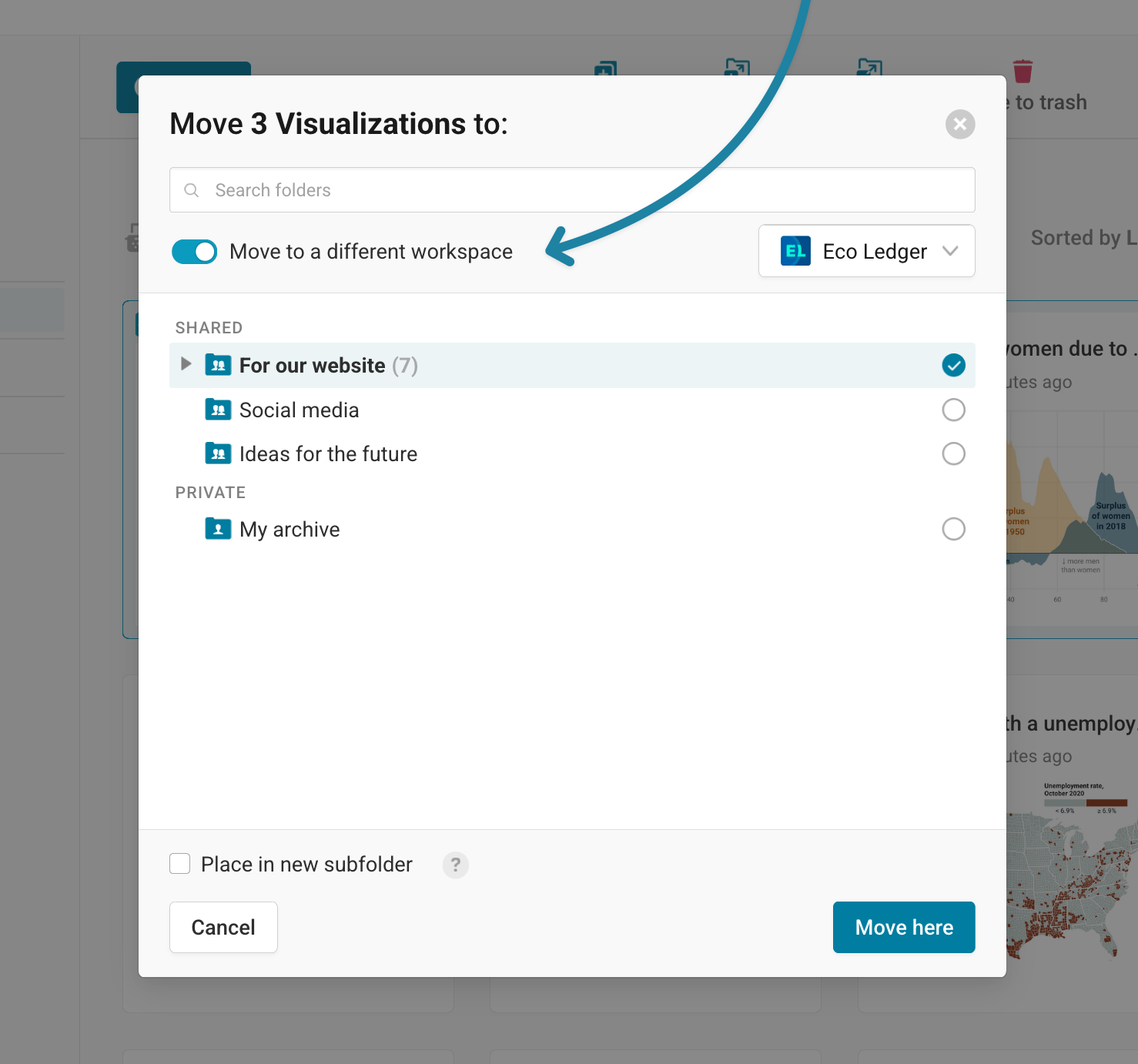
If you choose Place in a new subfolder, your visualizations will be moved to a new folder called "Transferred from [name of your workspace]".
Click on Move here – and that's it. Your visualizations have been moved!
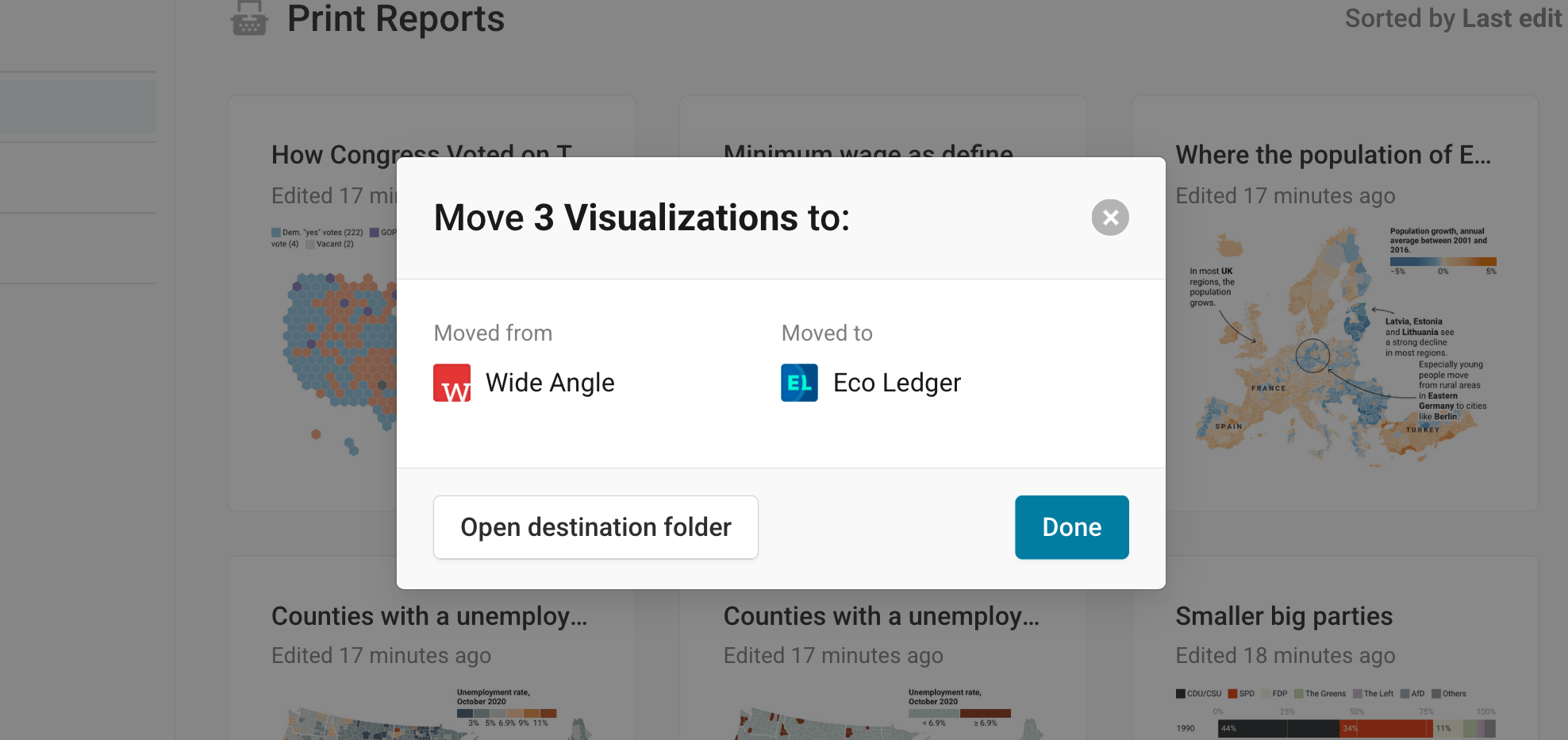
You can now open the destination folder in the workspace you selected, or click Done to stay in the folder you're seeing in the background.