How to move, copy, and duplicate visualizations
If you're creating lots of visualization, you might want to start organizing them in folders in your Archive (here's a direct link if you're logged in). And if you do so, you might want to move or copy visualizations between folders. This article explains how to do so.
Contents
- Select multiple visualizations in the Archive (a primer)
- Move & copy visualizations to another folder – within the Archive
- Move & copy visualizations to another folder – within the editor
- Duplicate visualizations
👉 Learn about the display options in the archive and how to sort and search in it in this article.
👉 Learn how to move, duplicate, move, rename, or delete folders in this article.
👉 For ideas on how to better organize lots of visualizations (e.g. with templates or by mirroring your process), visit this article.
Select multiple visualizations in the Archive (a primer)
If you want to move or copy multiple visualizations in the Archive, selecting them all at once is very useful. To select one or multiple visualization, hover over the preview of your visualization (in the grid view) and then click on the checkbox in the top left corner, or hover over a row (in the list view) and click on the checkbox that appears in the beginning of the row.
You can also drag to select: Hold the mouse while moving your cursor over all visualizations you want to select.
You can also select all visualziations in a folder by clicking on Select all visualizations at the top.
Move & copy visualizations to another folder – within the Archive
To learn how to move visualizations to another workspace, read this article.
There are a few ways to move visualizations to another folder. First, here are the options that you can use when you're in your Archive.
The easiest way is to select one or multiple visualizations (see above), then drag them on the folder you want to move them to:
To move one visualization, drag it directly to a new folder. To move multiple visualizations, select them before dragging them all together to the new folder.
To copy the selected visualizations instead of moving them, hold option/alt while dragging them to another folder. This automatically adds a "(copy)" to their title.
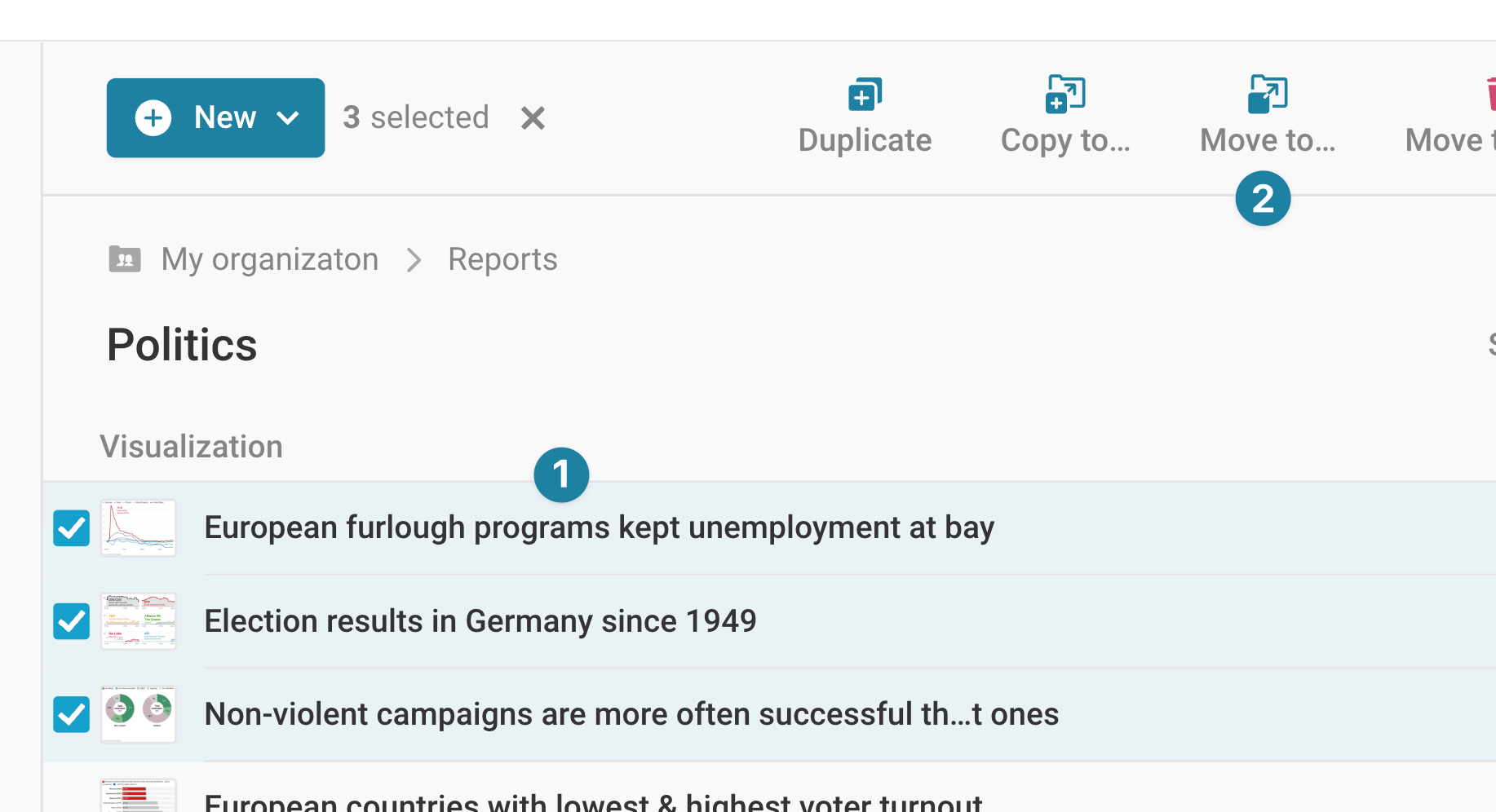
Another way is to ❶ select one or multiple visualizations and to click on ❷ Copy to... or Move to... that appear at the top:
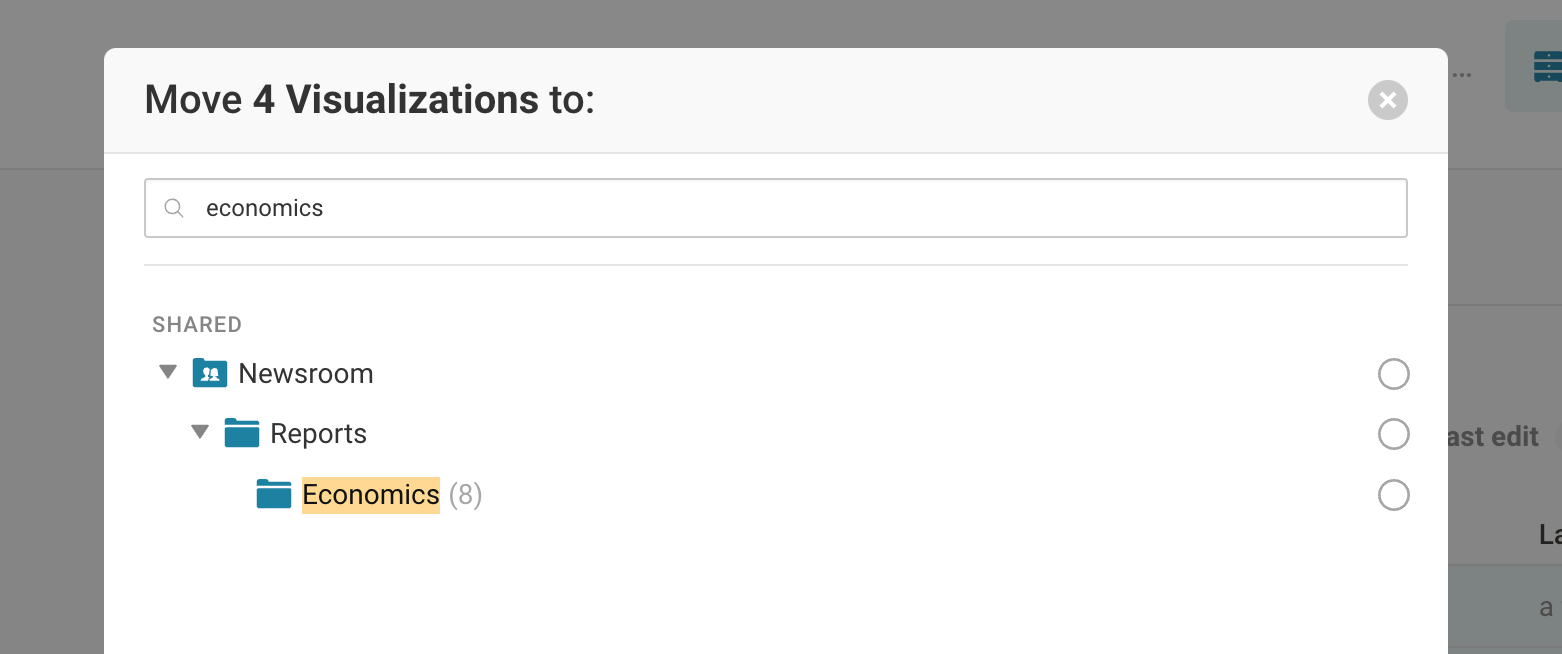
This opens a pop-up where you can select the folder you want to move or copy your charts to. There you can also search for a folder, which makes it perfect if you handle lots of folders or have multiple teams:
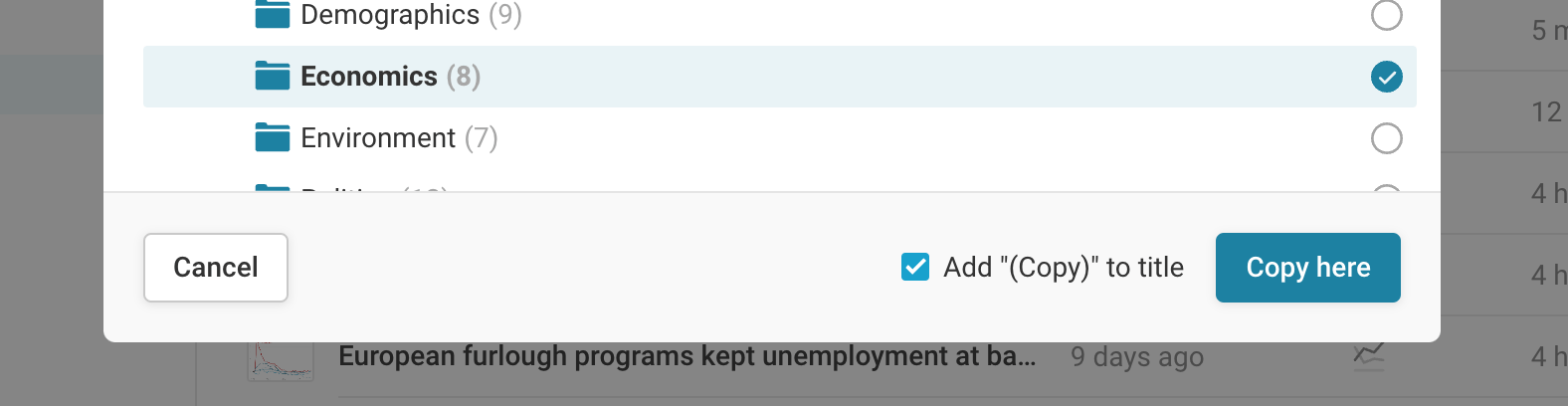
If you click on the Copy to... action, you can decide if you want to add "(Copy)" to the end of your visualization title
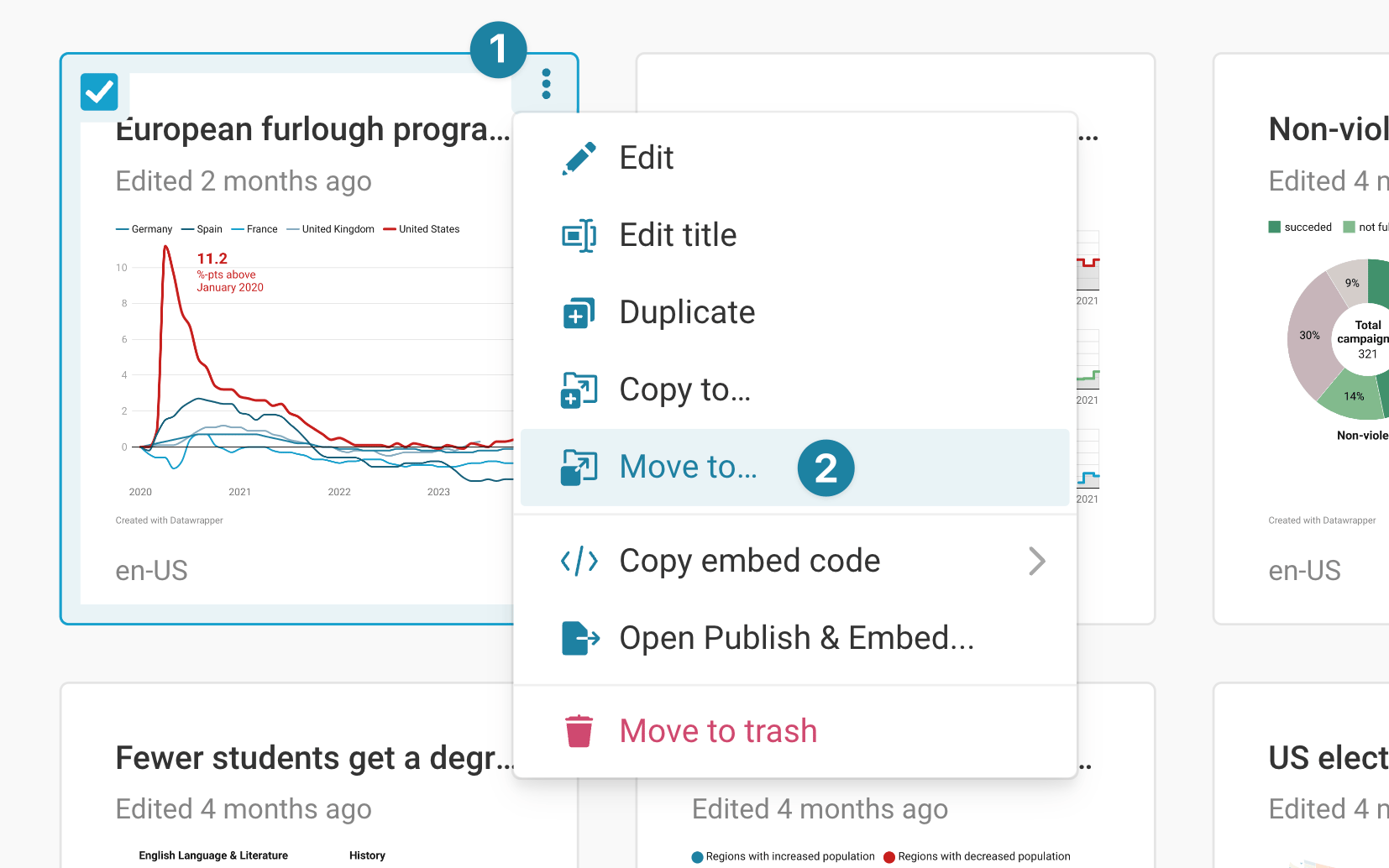
A third way to move or copy visualizations it to hover over a visualization, then ❶ click on the three dots in the upper right (in grid view) or at the end of the row (in list view). This opens a menu which lets you ❷ copy and move visualizations with the same dialogue as in the previous option:
Move & copy visualizations to another folder – within the editor
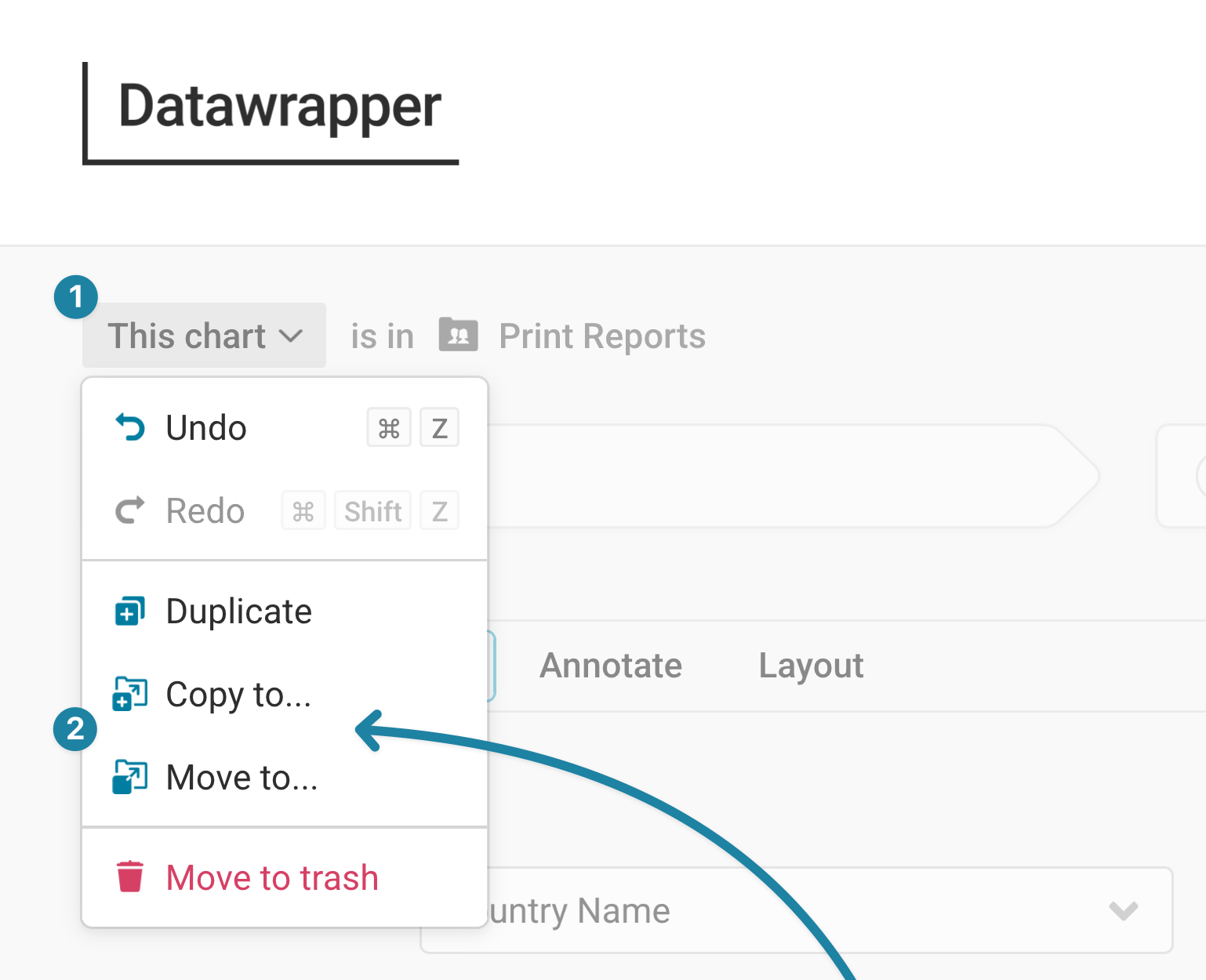
If you're editing a visualization in the Datawrapper editor, you can also move and copy that visualization to another folder from there. To do so, click on the ❶ chart menu in the top left, then on ❷ Copy to... or Move to... This will bring up the same pop-up as described above, in which you can select the folder you want to copy or move the visualization to.
Duplicate visualizations
When you choose to duplicate a visualization, a new tab will open with a copy of your visualization. That duplicate version of your visualizations will be in the same folder as your original one.
There are a few ways to duplicate visualizations.
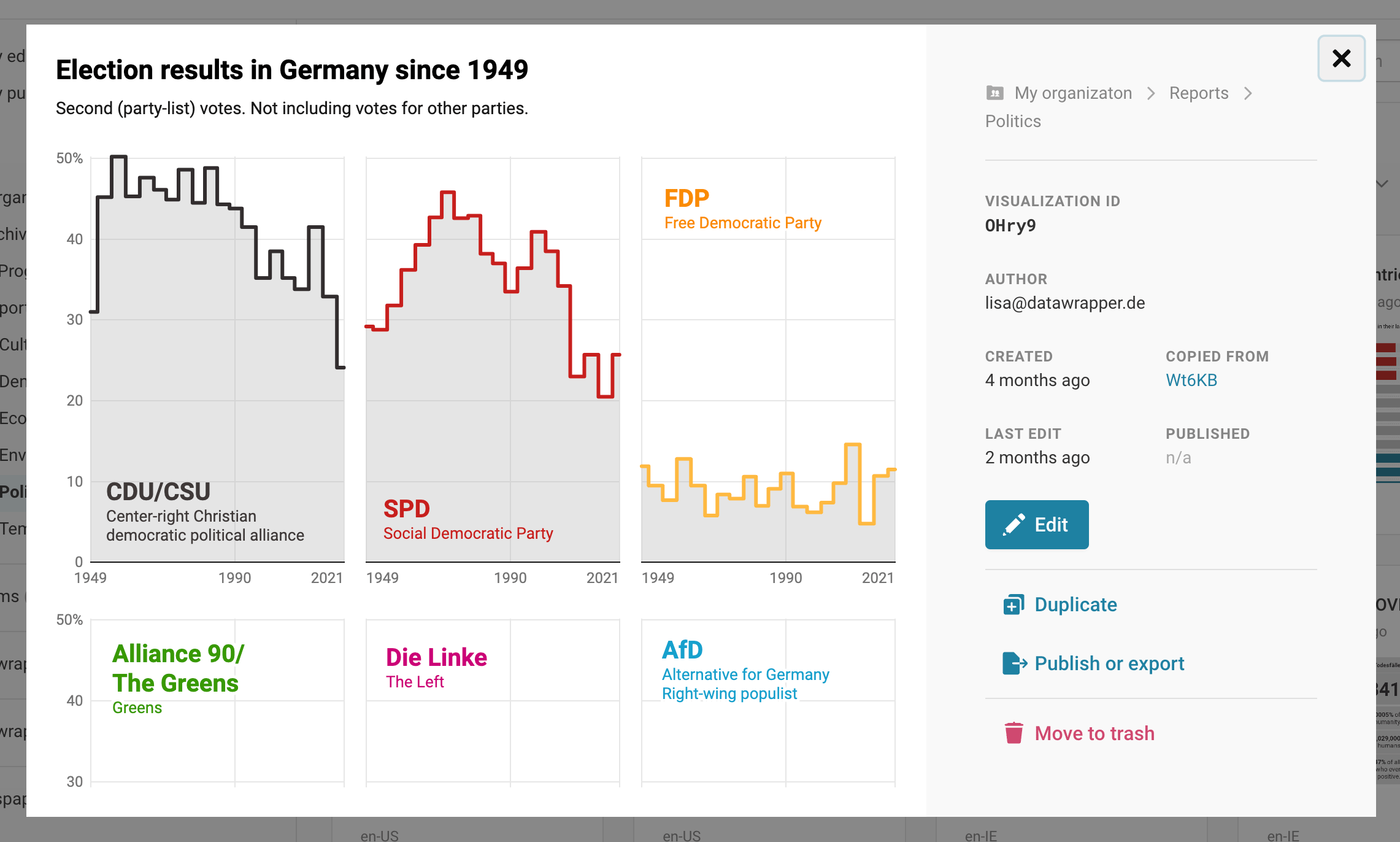
In the Archive, the easiest way to duplicate individual visualizations is to click on the visualization thumbnail or title. The visualization will appear in a pop-up window with an option to edit, duplicate, publish/export, and move the visualization to trash:
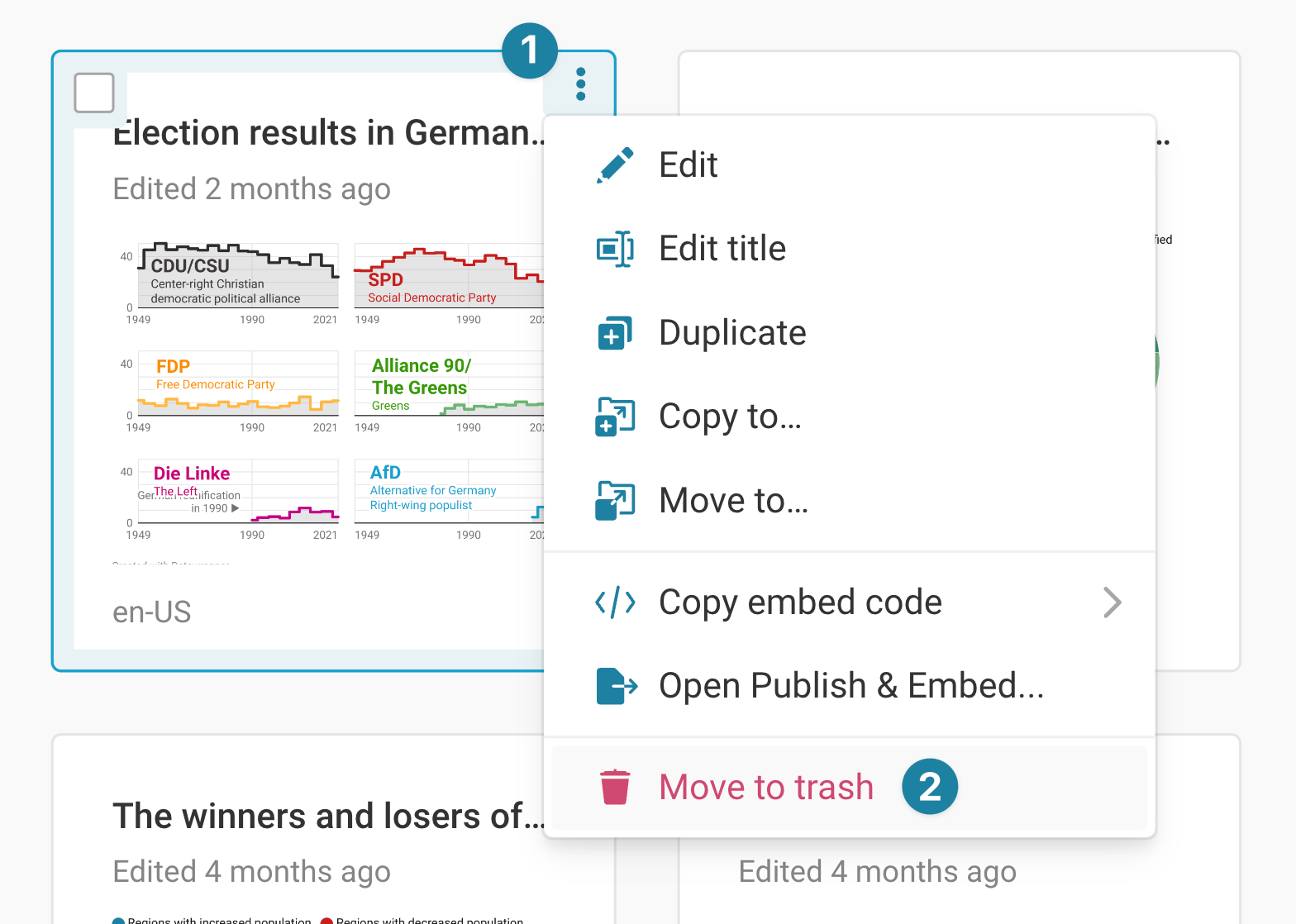
Similar to copying and moving visualizations, you can also click on the ❶ three dots in the upper right (in grid view) or at the end of the row (in list view), then choose ❷ Duplicate:
To duplicate multiple visualizations at once, first select them, then select Duplicate to at the top, as described above.
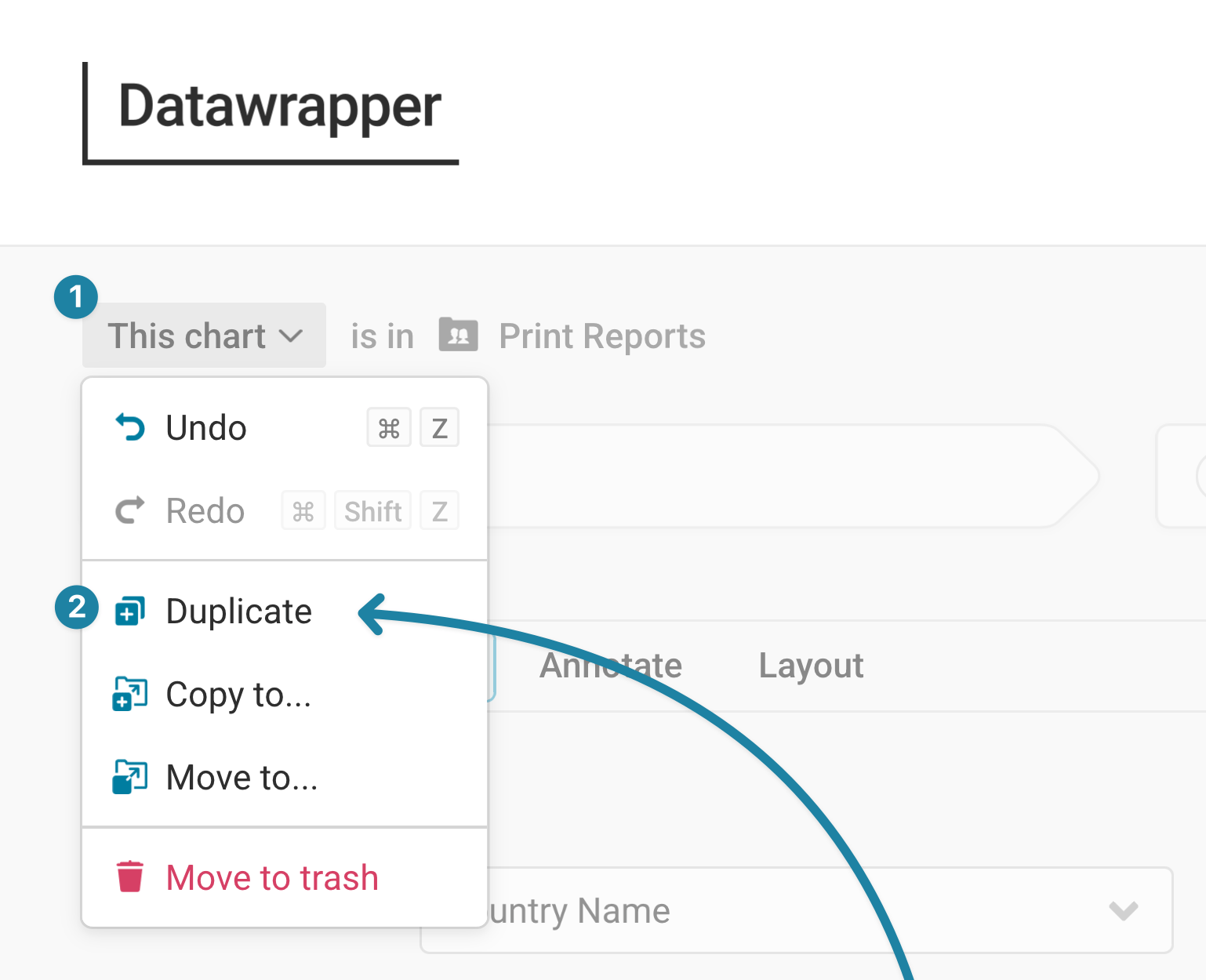
You can also duplicate a visualization while you're working at it in the Datawrapper editor.
To do so, click on the ❶ chart menu in the top left, then on ❷ Duplicate. This will immediately bring you to the duplicated visualization.
If you have any questions, don't hesitate to reach out to support@datawrapper.de.