How to add team members
In teams, you can collaborate on visualizations with others. Everyone in a team will have access to all its visualizations, no matter when they were created.
To invite others to a team, you need to be a Workspace manager or admin, or a team manager. If you can't find the settings shown in this guide, you're probably a workspace member or guest. Ask a team manager, workspace manager or workspace admin to change your role. Learn more about roles here.
How to invite others to a team
To invite others to a team, first navigate to your workspace settings, via the menu at the top right of your dashboard, and scroll down to the Teams section on the left.
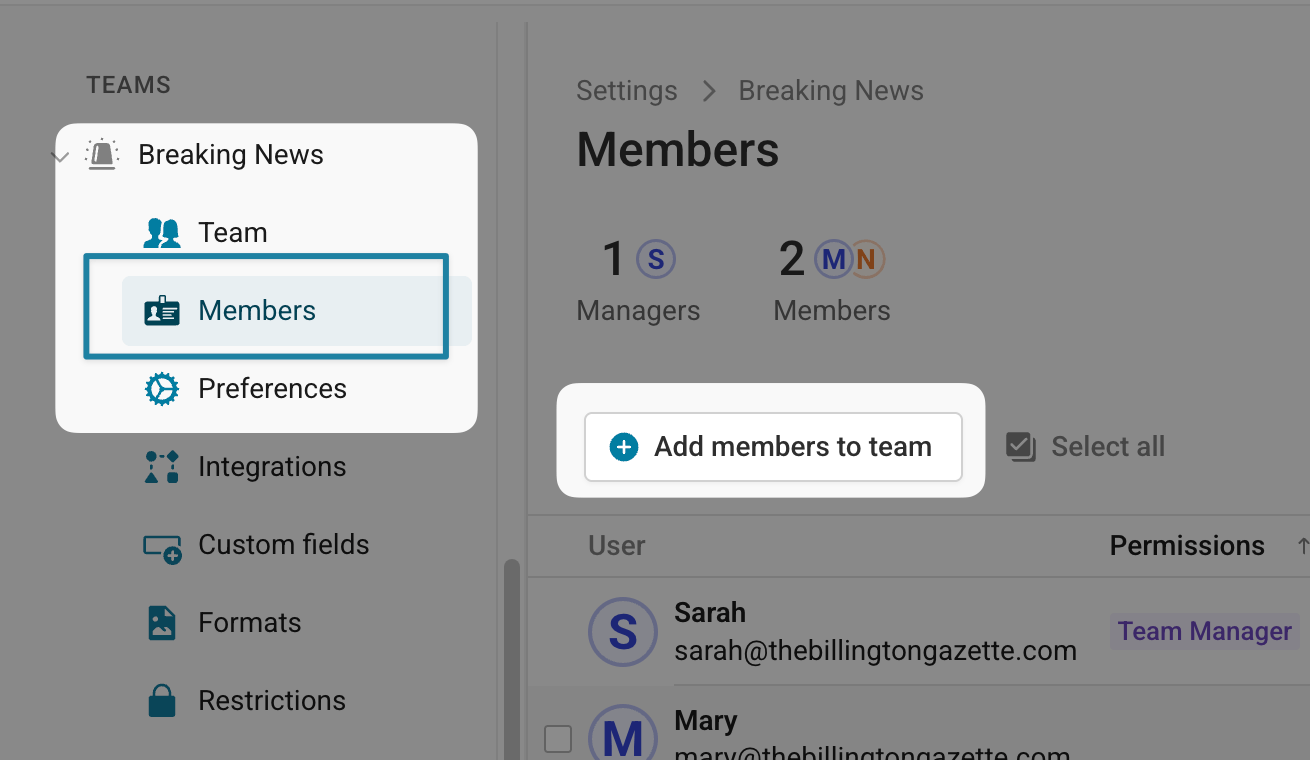
Then select the team you want to invite people to from the list, and click on Members, and then on the Add members to team button.
In the pop up that opens, you can search and add existing workspace members. Learn more about adding people to your workspace here.

To invite people who are not yet part of your workspace, click on Or invite external members via email. In the pop up that opens, add the following information:
the email of the person you want to add. You can also add multiple people at once by separating their emails with a comma.
their workspace role: Guest, member, manager, or admin. Learn more about roles and their permissions here.
if they should be able to create, edit, and delete visualizations. Learn more about edit permissions and read-only users here.
the teams they should be a part of, besides the one you to add them to.

The invited people will receive an email to set up their account, and then you can start collaborating!
Changing team roles
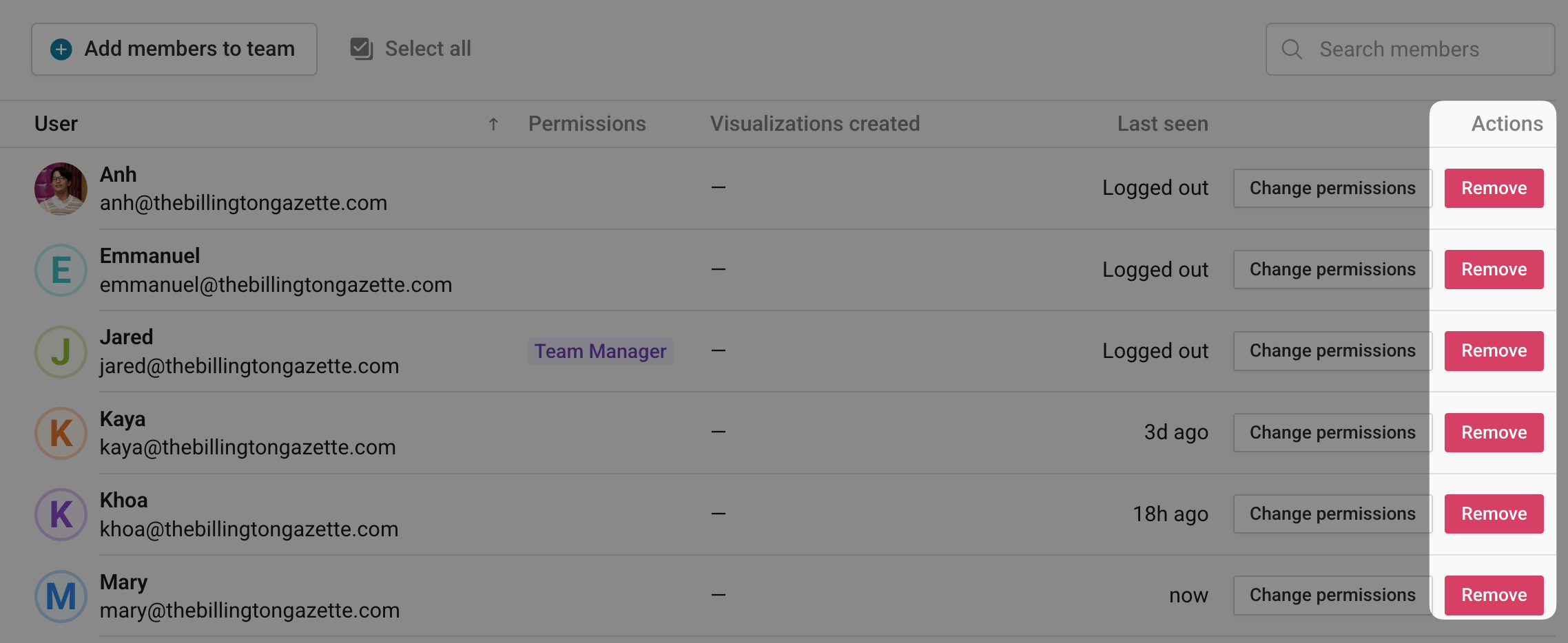
When you invite people to a team, they join with the team role "Team Member." If you're a team manager or workspace manager or admin, you can upgrade them (or yourself) to a Team Manager. To do so, click on Change permissions, and toggle Team manager on or off.

No matter their role, team members will be able to create, view and edit all your team charts, no matter when someone has created them. They will also be able to change your team folder structure, e.g. create new folders, rename old ones and move charts.
How to remove others from a team
If you want to remove people from a team (for example, because they left your organization), simply click on Remove in the list of members on the Members page:
Adding or removing team members from the workspace settings
If you're a workspace manager or admin, you also have the possibility of adding or removing workspace members to one or several team. To do so, select one or several members, click on Manage memberships, and select the teams they should be added to:
And that's it! That's how you can invite others to a team and how to remove them.