How to customize the image download file name

Customizing the image download file name is available on the Pro, Business, and Enterprise plans. Find more information about our pricing options here.
In Datawrapper, you can add image download options to the footer for your readers to download images of your visualizations. You might also be using the automatic image publishing feature to embed your visualizations as images. In this article, you'll learn how to configure a custom file name for the image downloads.
Where to find the settings
Go into your workspace settings, then navigate to the Formats section. Scroll down until you see the Custom image file name settings:

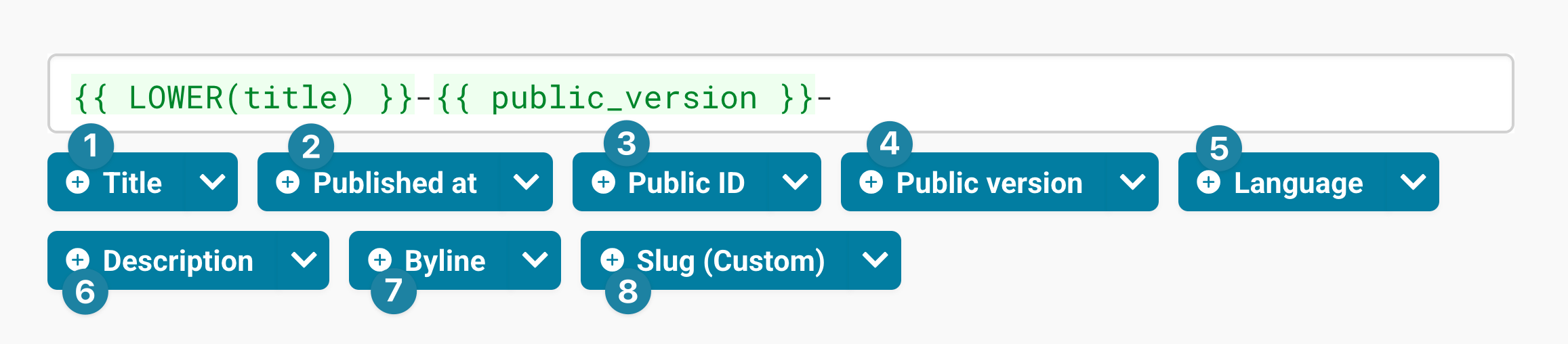
List of available placeholders
You can use placeholders to configure your own custom image name.
You can also format the placeholders by clicking on the little white arrow inside the blue buttons:
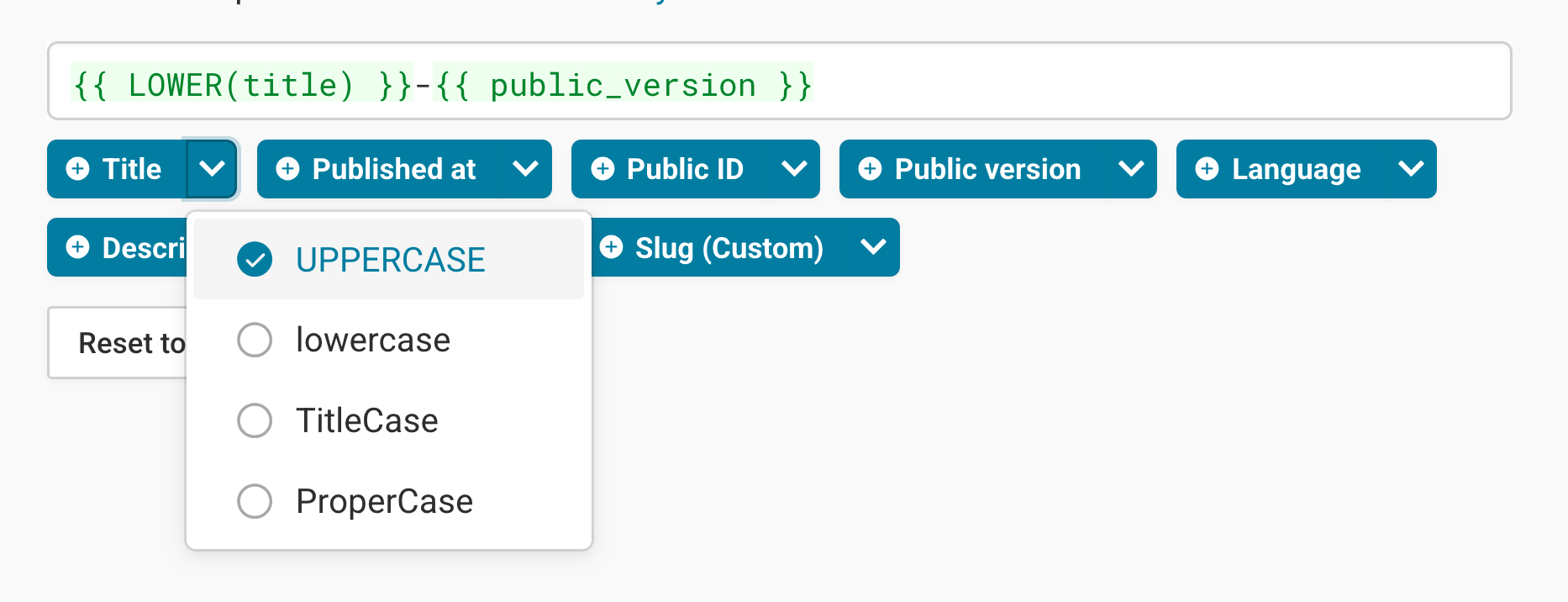
The default is {{ LOWER(title) }}, and if you click on Reset to default, you can always get back to this version. If you do want to customize the image title, here's what's available:

| ① Title | The title of the visualization (e.g. A title "EV adoption" will display as "ev-adoption" in the file name, if you choose the lowercase version) |
| ② Published At | The published date of the visualization (e.g. "260203", "2026-02-03", etc.) Unpublished visualization will return an empty string. Find date formats you can display here. |
| ③ Public ID | Chart ID, a unique five-character alphanumeric identifier for each visualization (e.g. "6DcRU") |
| ④ Public Version | Version number, i.e. the number of times the visualization has been published (e.g. A chart with the version number of _2 has been published 2 times.) |
| ⑤ Language | Output locale of the visualization (e.g. "en-US", "de-DE") |
| ⑥ Intro | Contents of the description (e.g. "Share-of-new-cars-sold...") |
| ⑦ Byline | Contents of the byline (e.g. "Céleste Dupont") |
| ⑧ (Custom) | Contents of the custom field. You can add more information to your visualization by configuring custom fields that can also be used as part of the file name. (e.g. "FINANCE", "F22XBD9") |
Tip: If you don't want this setting to apply to the entire workspace, you can change the settings of individual teams.
If you have any questions, email us at support@datawrapper.de.