New: Undo/redo in the Datawrapper editor

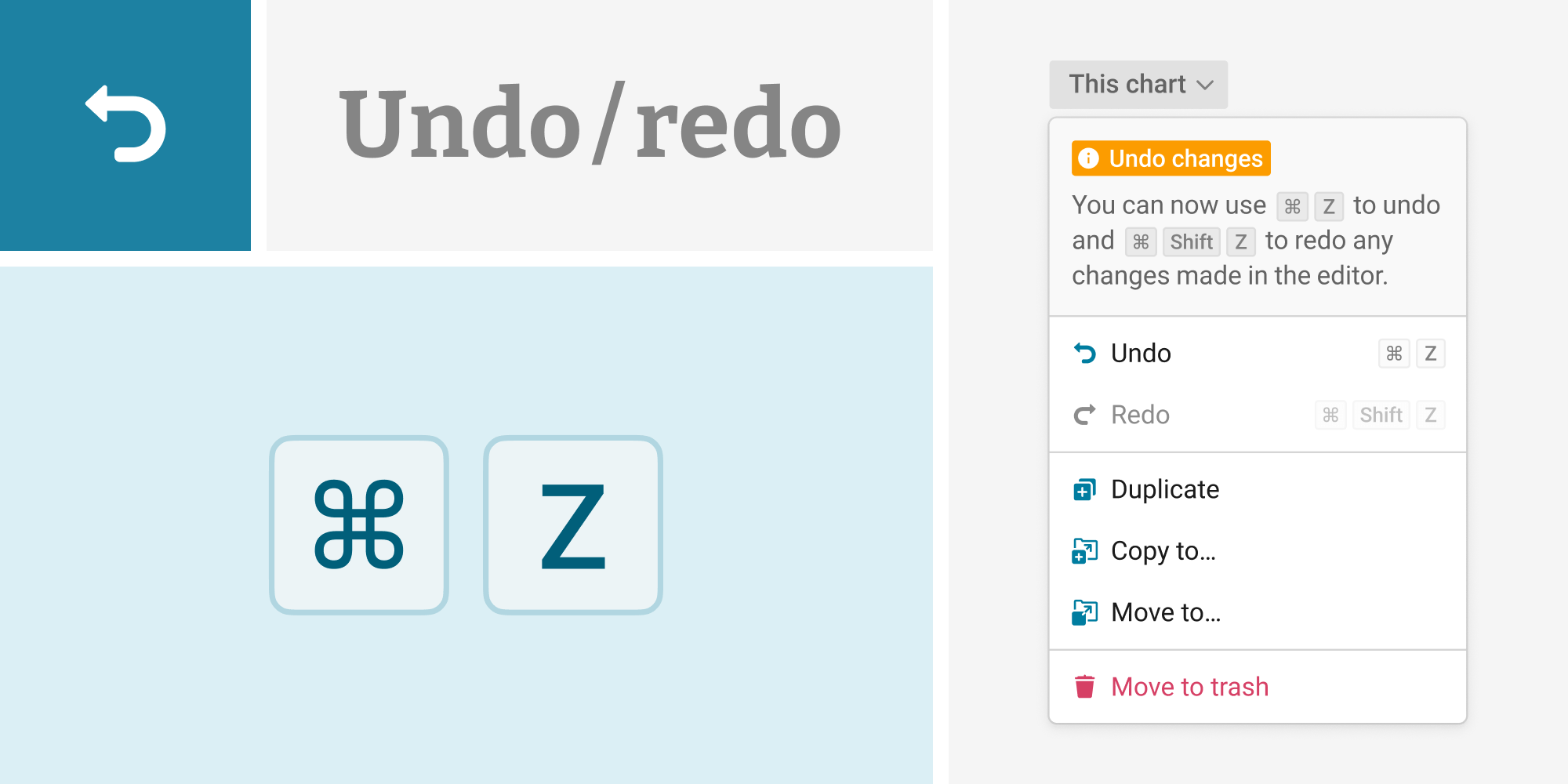
Creating a great data visualization isn’t a straightforward process. You might move an annotation a bit higher, change the color, add more labels – and then decide that you actually preferred the version three edits ago. With our new undo/redo options and a faster way to duplicate, move, copy, and delete charts, it’s now easier to control your edits and experiment with different chart designs.
Undo any changes
It’s now possible to undo all your changes step by step with the keyboard shortcuts Ctrl Z (Windows) or Cmd Z (Mac). You can also find an Undo option or in our new chart menu in the top left of all your visualizations, available at every step of the process.
That last change was fine, actually? To redo reverted changes, also use the chart menu, or hit Ctrl Shift Z (Windows/Linux) or Cmd Shift Z (Mac).
You can undo/redo in all steps; from pasting a new CSV in step 1 and changes to your data in step 2 to changing title, color, annotations, etc. in step 3. Preview controls (e.g. dark mode and the colorblind simulations) are not affected by undo. To undo publishing, click on “Unpublish” in step 4.
For a longer view of the past, you can continue to use the edit history. It saves versions of your visualizations every 30 edits, every time you publish your visualization, when you change the chart type, or one minute after your last edit.
Duplicate, copy, move & delete directly from the visualization editor
When you want to try an entirely new idea in your visualization or prepare it for another use case, you can duplicate it. To do so, and to move or delete your visualization, you can also use the new chart menu in the top left:
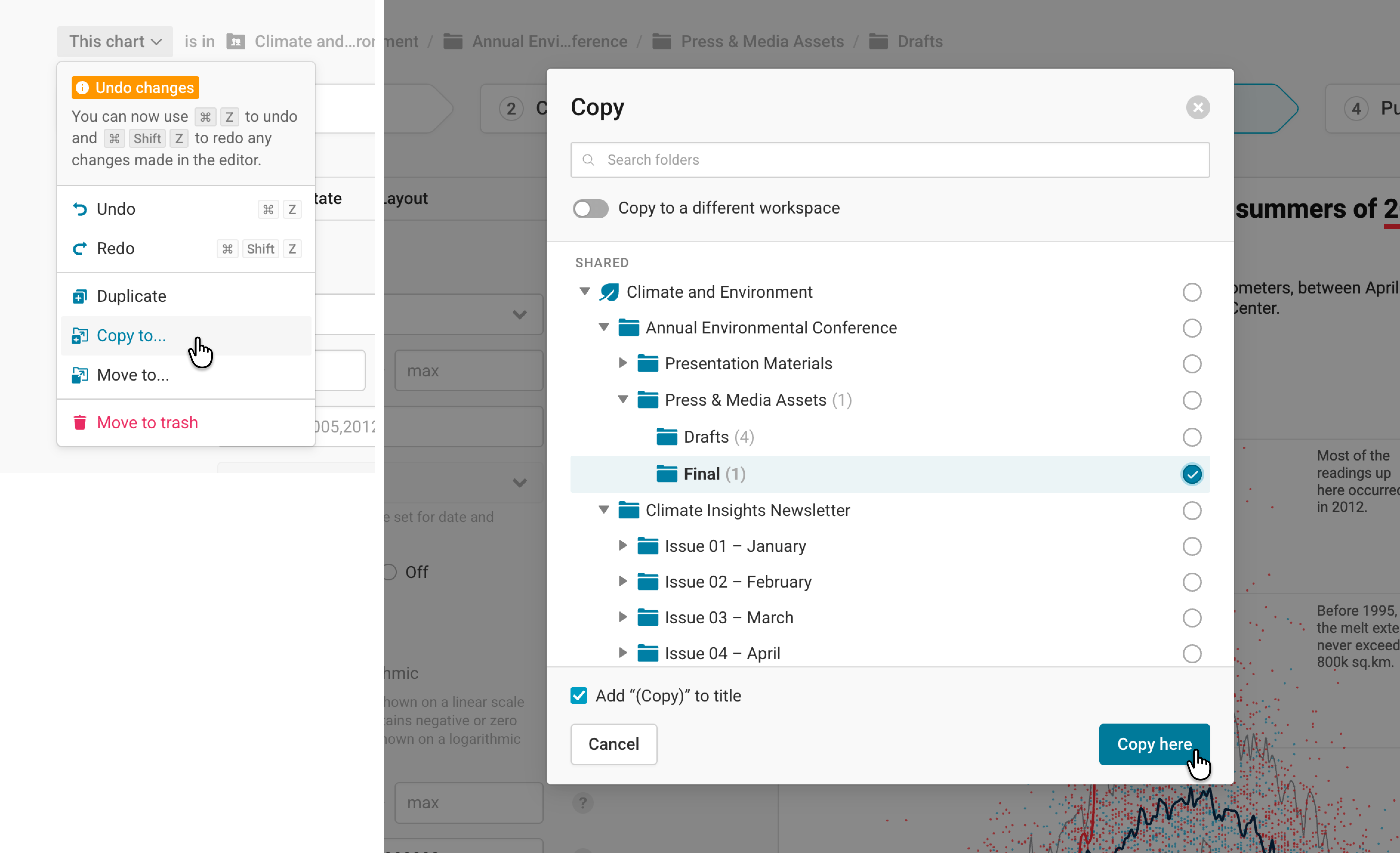
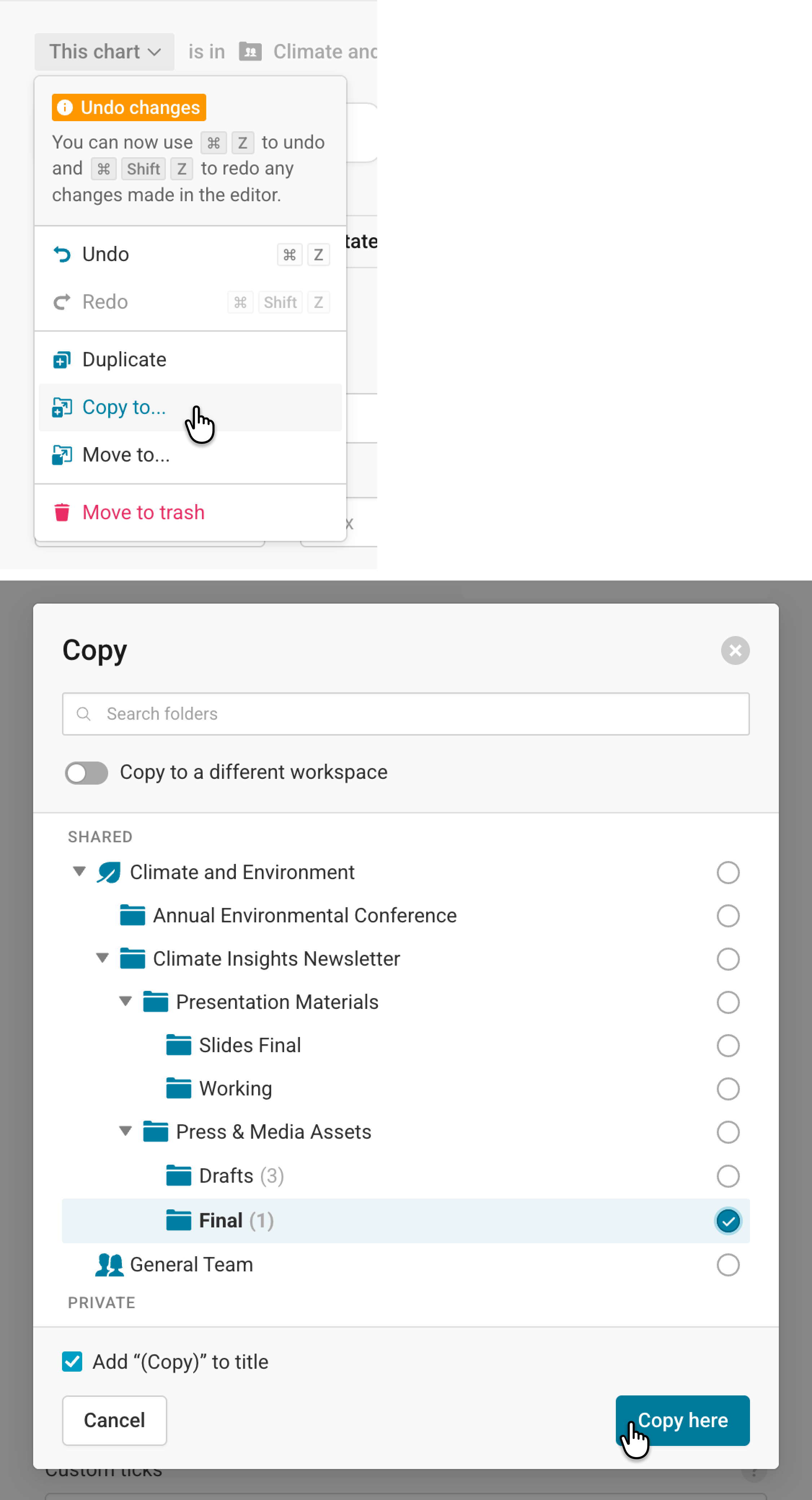
- Duplicate makes a copy of your visualization and opens it in the editor.
- Copy to… lets you copy your visualization to a certain folder in your Archive. Once you confirm the folder, the copied visualization opens in the editor.
- Move to… lets you move your visualization to another folder in your Archive. Once you confirm, you’ll see the visualization’s new location next to the chart menu.
- Move to trash deletes the chart (you can always restore it).
You will also continue to find the options to copy, move, duplicate, and delete visualizations in your Archive. Find more information about this in our Academy.
We hope this helps you create Datawrapper visualizations faster and explore ideas more easily. Let us know what you think at support@datawrapper.de. We’re looking forward to hearing from you.


