How to delete and restore visualizations
Contents
- Select multiple visualizations in the Archive (a primer)
- Delete visualizations
- Restore a deleted visualization
Select multiple visualizations in the Archive (a primer)
If you want to delete multiple visualizations in the Archive, selecting them all at once is very useful.
To select one or multiple visualization, hover over the preview of your visualization (in the grid view) and then click on the checkbox in the top left corner, or hover over a row (in the list view) and click on the checkbox that appears in the beginning of the row.
You can also drag to select: Hold the mouse while moving your cursor over all visualizations you want to select.
You can also select all visualziations in a folder by clicking on Select all visualizations at the top.
Delete visualizations
There are a few ways to delete visualizations.
In the Archive, the easiest way to delete one or multiple visualizations is to drag and drop them to the Trash bin that you always find at the bottom of the folder sidebar.
Another way to delete an individual visualizations is to click on the visualization thumbnail or title. The visualization will appear in a pop-up window with an option to edit, duplicate, publish/export, and move the visualization to trash:

Click Move to trash, then confirm.
You can also click on the ❶ three dots in the upper right (in grid view) or at the end of the row (in list view), then select ❷ Move to trash in the menu that appears:

To delete multiple visualizations at once, first select them, then click on Move to trash that appears at the top.
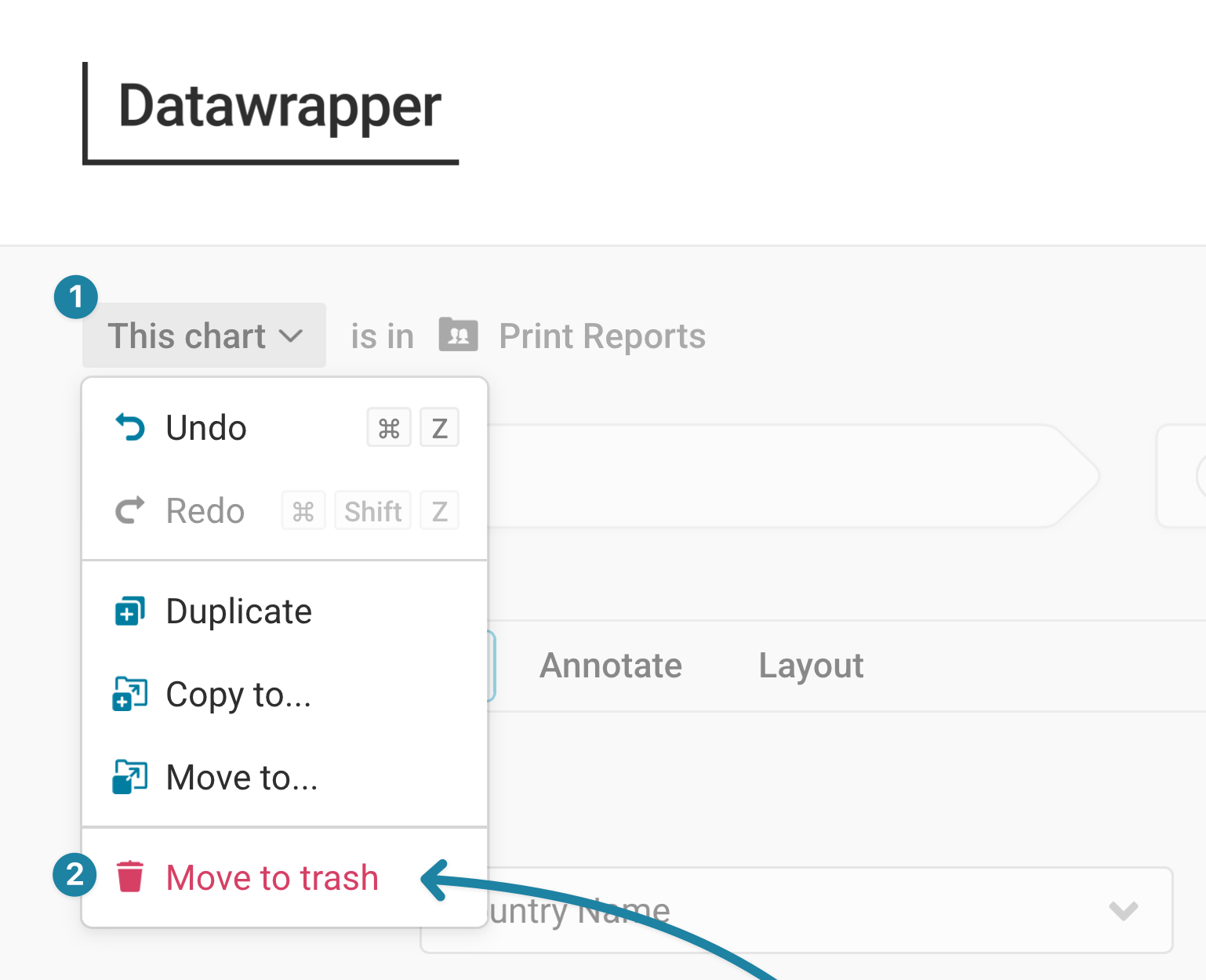
If you're in the process of editing a visualization and decide that you want to delete it, click on the ❶ chart menu in the top left and then on ❷ Move to trash. If you do, you'll get back to the Archive.
Restore a deleted visualization
The trash bin keeps deleted visualizations for 30 days before they are permanently deleted.
To restore a visualization from the trash bin, click on Trash in the lower right, then on the three dots in the top right of a visualization and select Restore:

If you have any questions, don't hesitate to reach out to support@datawrapper.de.