How to take a screenshot of your browser console for troubleshooting
Something that can help us troubleshoot is a screenshot or a video recording of your browser's developer console. This is an article explaining how to find the browser consoles of popular browsers.
First, open the Datawrapper app on the page where you're experiencing the issue. Then, open your browser's developer console by following the instruction under each browser type below:
Contents
Chrome
Go to ① ⋮ menu on the top-right corner > ② More Tools > ③ Developer Tools > ④ Console tab
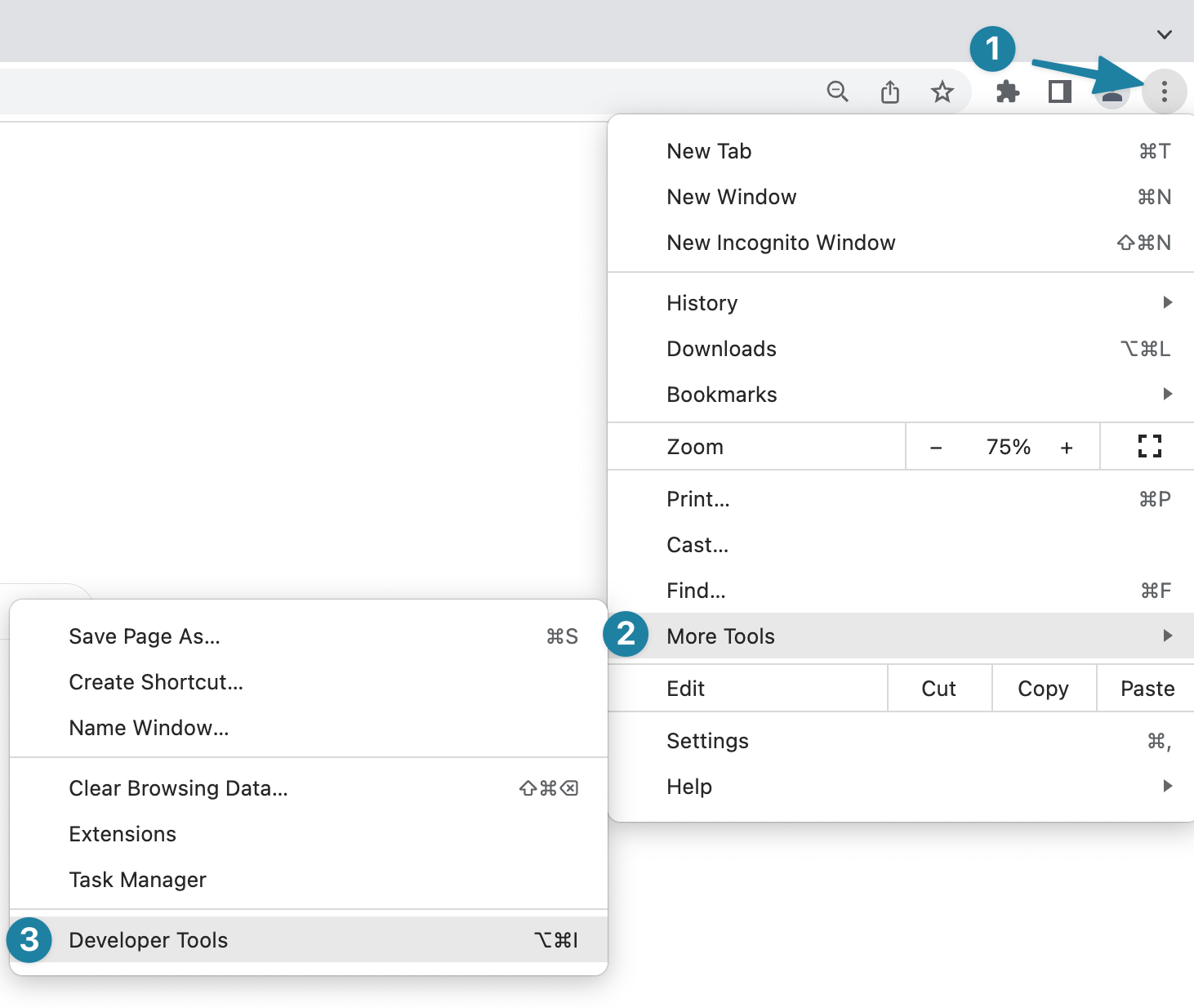
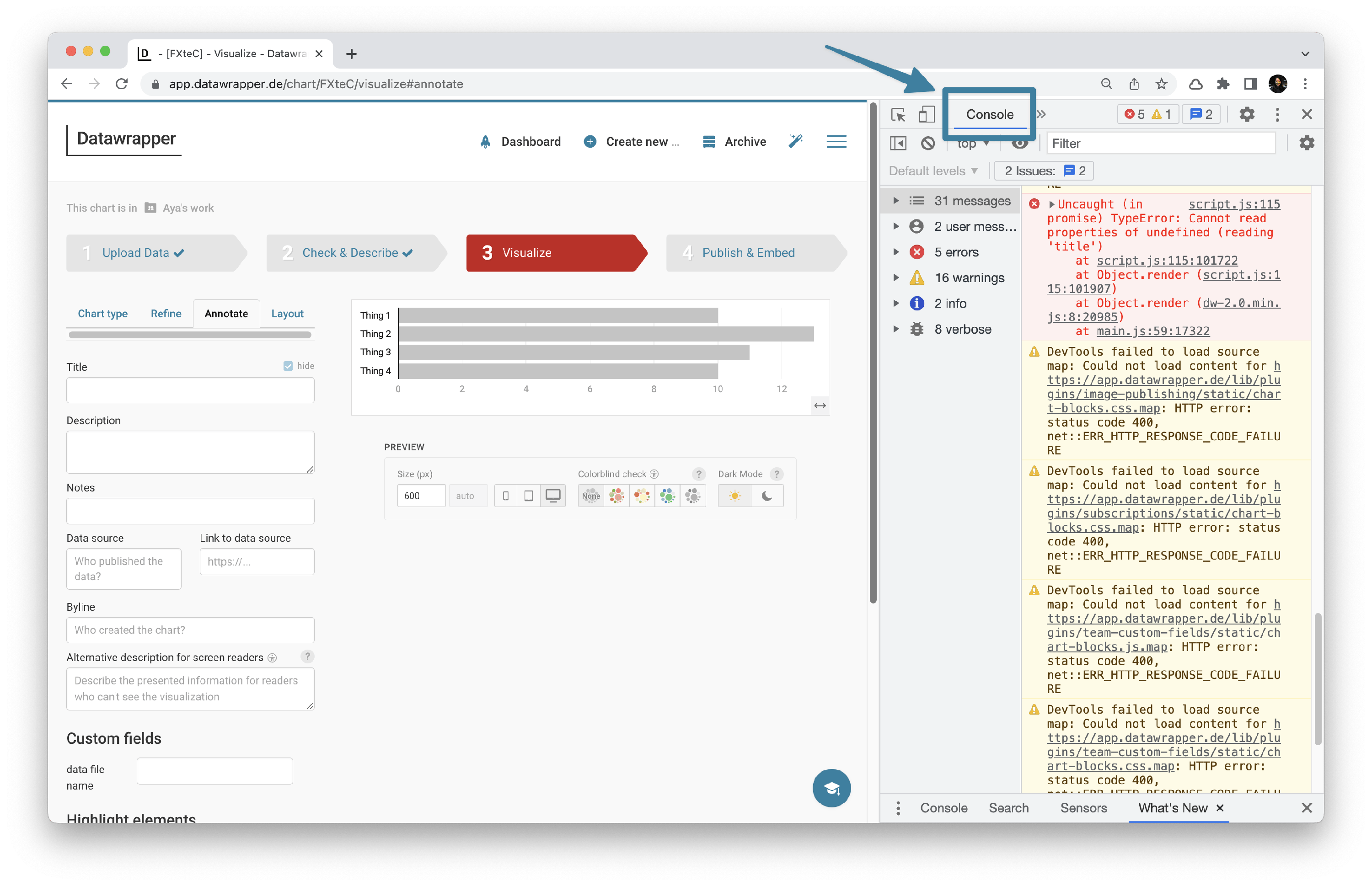
You can also use keyboard shortcuts Option + ⌘ + J (Mac) or Ctrl + Shift + J (Windows/Linux).
Firefox
Go to ① ☰ menu on the top-right corner > ② More tools > ③ Web Developer Tools > ④ Console tab
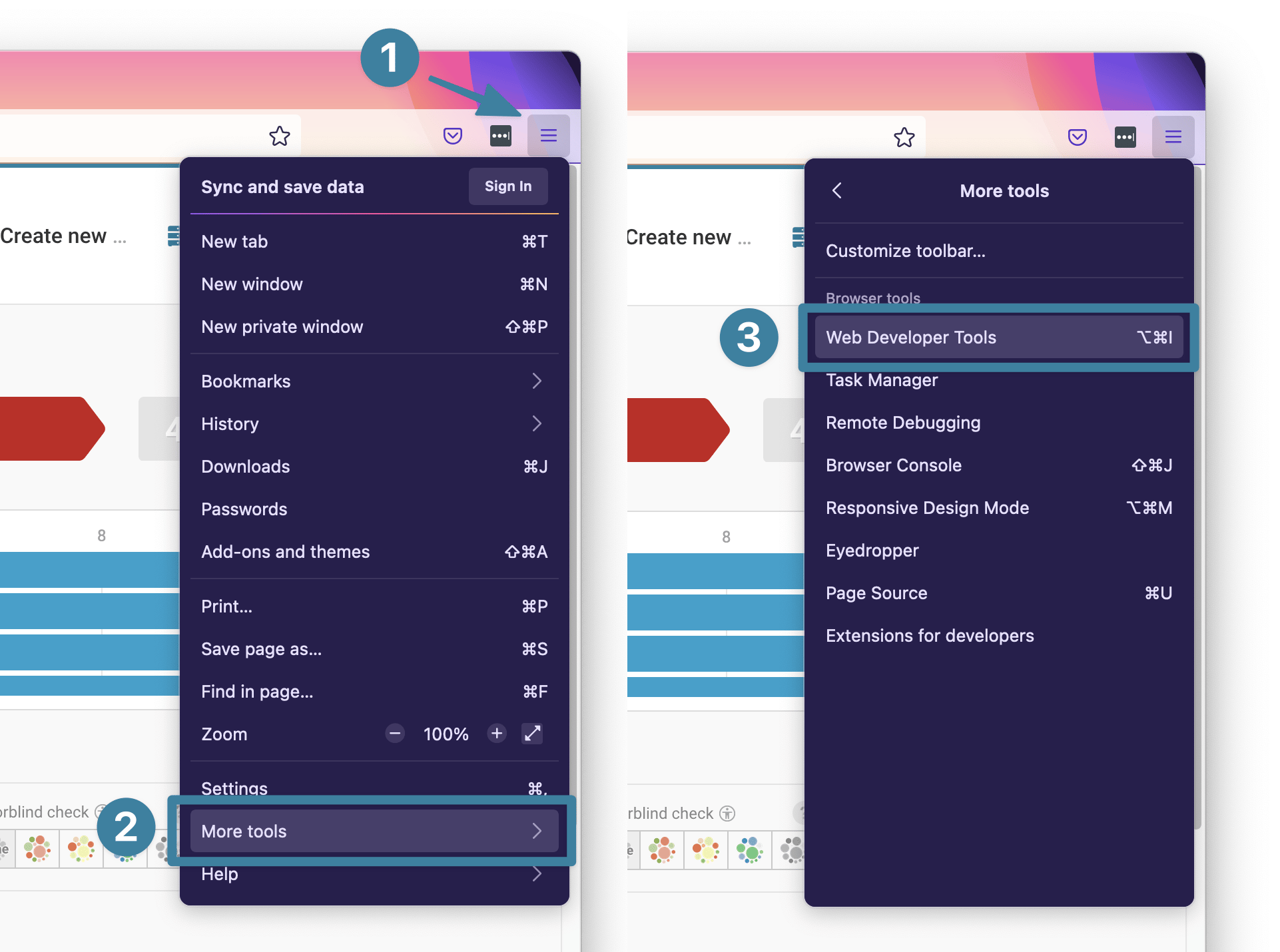
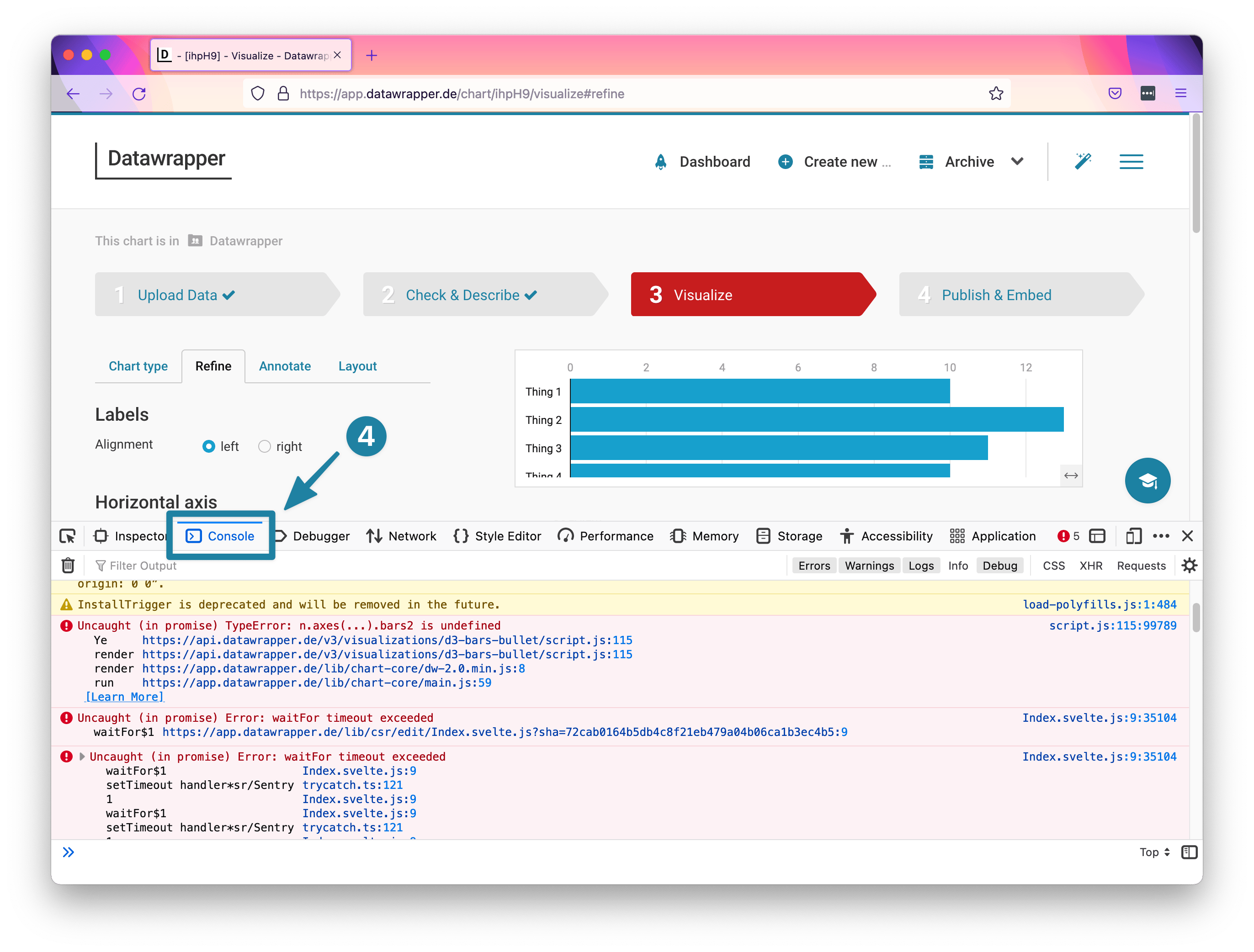
You can also use the keyboard shortcut Option + ⌘ + K (Mac) or Ctrl + Shift + K (Windows/Linux).
Safari
In the top menu bar, go to Develop > Show Web Inspector

Navigate to Console tab
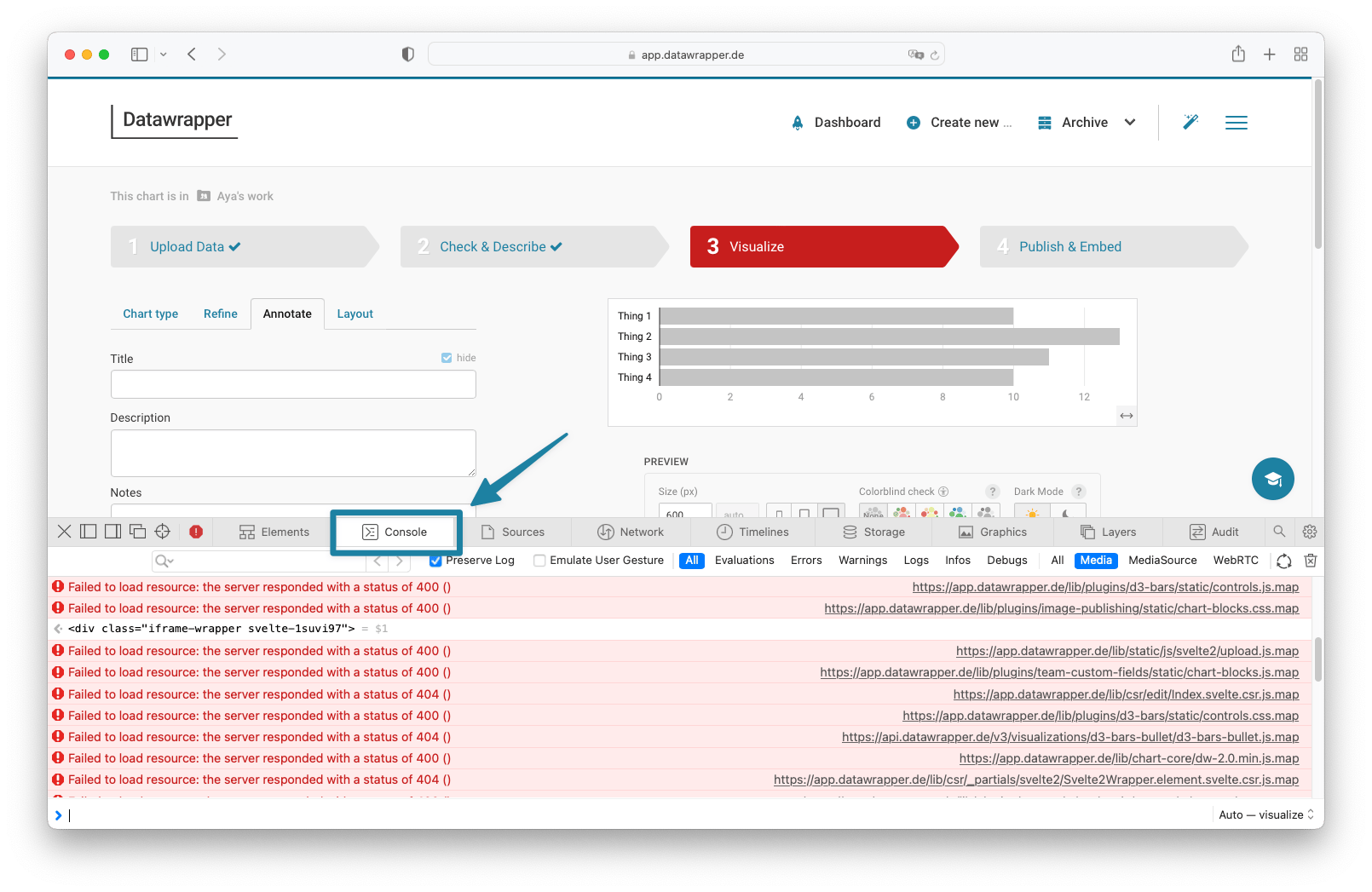
You can also use the keyboard shortcut Option + ⌘ + C.
Once you have your console open, take a screenshot and send the image together with details of what you're experiencing to support@datawrapper.