How to select a primary team (and what that means)

If you're working with multiple teams in Datawrapper, the concept of an primary team can be important. The primary team is the team where your new visualizations are created by default. It's also the team that appears on top in your archive.
What it means to create a chart in a primary team
Setting a team as your primary team has the following consequences:
- Where your newly created visualizations will go by default. The team members of your primary team can immediately see the visualization you're creating. (If you want to avoid that, select your private My Archive team as your primary team, then drag your visualization into the right team in the Archive once you're happy with it.)
- Who else can access/edit your visualizations. The team members of your primary team can access & edit all charts, maps, and tables you're creating.
- Which team settings apply when creating a visualization. For example, if your team owner decided to disable pie charts in your team, you won't be able to create pie charts when you set that team as your primary team.
Note that you always set the primary team for yourself, never for other people in your workspace. They cannot see which team you set as primary, and the same applies the other way round.
How to see which team is currently your primary one
The easiest way to see which team is primary is hovering or clicking on Create new... at the top (as seen on the image above). Your primary team will show up at the bottom of that little menu.
When you're in your Archive, your currently primary team will be on top and will come with a little house icon:

How to change the primary team
There are many ways to set another primary team.
First, you can change the primary team by hovering over Create new..., and then change the team in which charts are created:
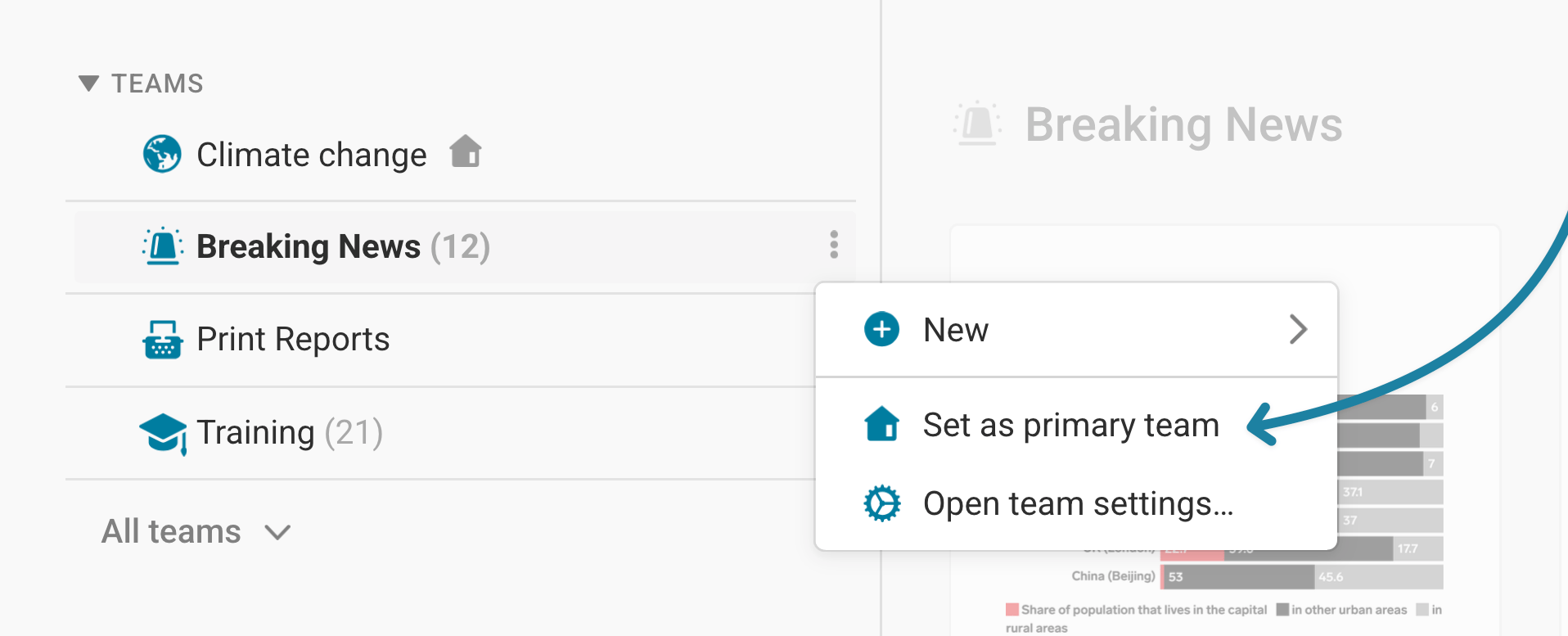
You can also switch primary teams in your Archive. To do so, hover over the team you want to set as your primary team, click on the little three dots and then choose Set as primary team in the menu that appears.
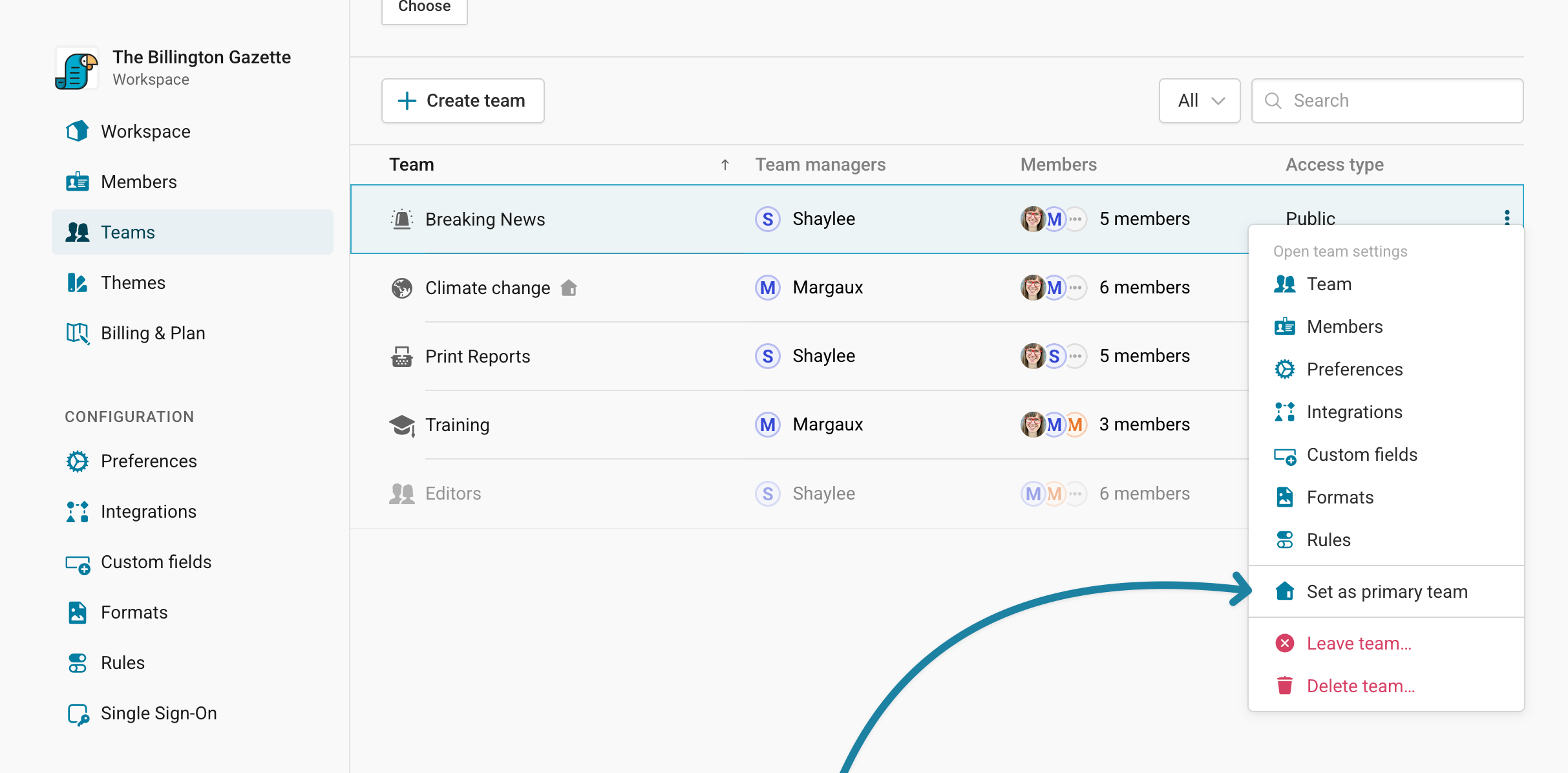
The third option is to go to your team settings, then hover over the team there, click on the three little dots on the right and choose Set as primary team:
And that's it! You've successfully set a new primary team.